Guide 01
Adding Customers & Properties
Create a customer and add the properties where your team works.
Download PDF: Adding Customers & Properties Yardline
Get started
Yardline Resource Center
Learn how to manage customers, schedule crews, optimize routes, and keep your landscaping business organized with Yardline.
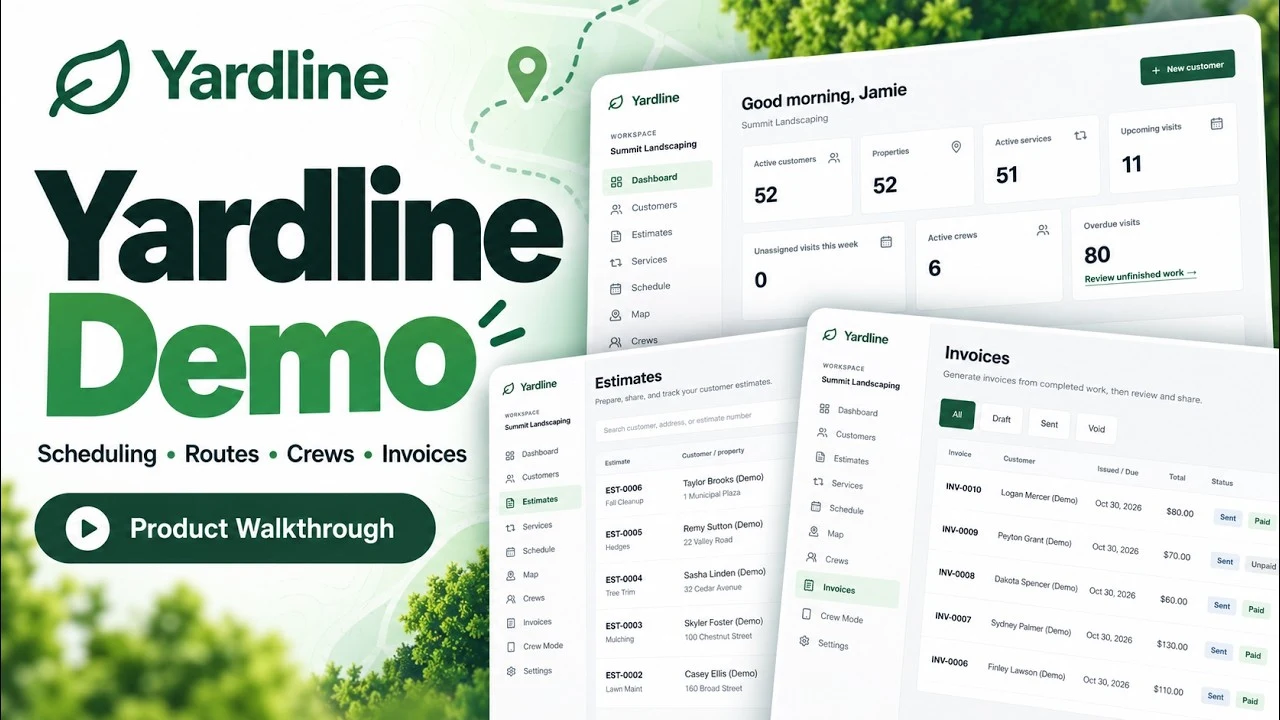
A walkthrough of the everyday workflow. The video player loads only when you choose to open it.
Eight short guides. Download the PDF you need and keep it handy.
Guide 01
Create a customer and add the properties where your team works.
Download PDF: Adding Customers & PropertiesGuide 02
Add existing work, choose its frequency, and activate scheduled visits.
Download PDF: Adding a Recurring ServiceGuide 03
Build a draft, share or email it, and receive the customer’s response.
Download PDF: Creating & Sending EstimatesGuide 04
Assign visits, order stops, and optimize one crew’s daily route.
Download PDF: Scheduling Crews & Optimizing RoutesGuide 05
Open your crew link, review daily and weekly work, and complete visits.
Download PDF: Using Crew ModeGuide 06
Create an invoice from eligible completed work and share it.
Download PDF: Creating & Sending InvoicesGuide 07
Record an offline payment and check that the invoice is marked paid.
Download PDF: Recording PaymentsGuide 08
Report a bug, suggest an enhancement, or contact support.
Download PDF: Submitting Feedback & Getting HelpCompare recurring scheduling, routing, field access, and pricing for seven tools used by small crews. Read the landscaping software comparison →
Need help? Email support@yardline.xyz.
Owners can report bugs and suggest enhancements using Help & Feedback inside Yardline. Crew members can report job issues from their visit screen or ask the office for help.